How to Enable Camera2 API on Xiaomi Mi A1 without Permanently Rooting it
Android Pie update for Xiaomi Mi A1 was released a while back and our users have asked us if they can enable Camera2 API on their Mi A1 after on Android Pie.

On this page
Android Pie update for Xiaomi Mi A1 was released a while back and our users have asked us if they can enable Camera2 API on their Mi A1 after on Android Pie. To answer the question, I will show you in this post how to easily enable Camera2 API on Xiaomi Mi A1 without permanently rooting it. The instructions will work regardless of the Android version installed on your phone. Furthermore, links have also been provided below to download the latest Google Camera Port for your Xiaomi Mi A1.
The Xiaomi Mi A1 is the company’s first smartphone featuring the Android One program. Being a part of the program means that the device offers guaranteed updates. Be it a major Android version release or monthly security patches. Talking about the software, the phone incorporates the stock AOSP firmware which is free from the majority of OEM bloatware. If you try installing the Google Camera Port on your Mi A1, you will probably fail due to the lack of Camera2 API support. Despite being based on stock Android, the Mi A1 still doesn’t offer direct support for Camera2API on Android Pie or Oreo.
If you have rooted your Mi A1, you can easily enable the API by making a few build.prop edits or via a Magisk module. In the case of the former, you would mount and write the /system partition, which will ultimately break the possibility of installing OTA updates on your rooted phone via Magisk. So, if you do not want to root, you can still enable camera2 API on your Xiaomi Mi A1 quite easily.
The process that has been listed below will first require you to boot Magisk Patched Boot Image to temporarily root your phone. Once your Mi A1 boots into the OS, you can simply use a Terminal Emulator to enable Camera2 API by executing a few simple commands. Since you will be rooting the phone temporarily, you will still be able to take OTA updates after following this method, so stay out of worries.
Also read: How to Hard Reset Xiaomi Mi A1 to Factory Settings (2 Methods)
Downloads
Below are the download links for stock and patched boot images for Xiaomi Mi A1 running Android Pie. We have also provided the stock boot image for the corresponding firmware. It shall help you unroot your phone in case you mistakenly flash the patched boot permanently.
Instructions to Enable Camera2API on Xiaomi Mi A1
In order to temporarily boot the patched boot image on your Mi A1, you must first install Android platform-tools on your PC and unlock the bootloader of your Xiaomi Mi A1 (Note: Unlocking the bootloader will wipe all the data on your phone, so make sure that you take a complete backup first). If you already have the bootloader unlocked, nothing will be wiped using this method.
I have personally tested this method on a Xiaomi Mi A1 running the latest Android Pie firmware. Although, it will work on older Android versions too. Just make sure that you download the patched boot image corresponding to the software build number installed on your phone.
Now to enable Camera2 API on your Xiaomi Mi A1, follow the instructions below.
- Download the Magisk patched boot image for Xiaomi Mi A1.
- Copy the downloaded image file to the folder where the ADB/Fastboot binaries are present (e.g. C:/username/platform-tools).
- Hold the SHIFT key and right-click on an empty space inside the folder.
- Select the ‘Open PowerShell window here’ option.
- Power off your Xiaomi Mi A1 completely.
- Now hold the Volume Down and Power buttons together to enter Fastboot Mode.

-
Connect your phone to the PC using the USB cable.
-
Enter the following command to temporarily boot the Magisk patched boot image on your Mi A1:
fastboot boot boot-image-filename.img
-
Make sure to replace ‘boot-image-filename.img’ with the actual filename. For example, if you’re on the firmware with V10.0.21.0 build number, the command should be:
fastboot boot patched_boot_V10.0.21.0_mi_a1.img

- Just as the command is entered, your Mi A1 should boot into the OS with temporary root with Magisk.
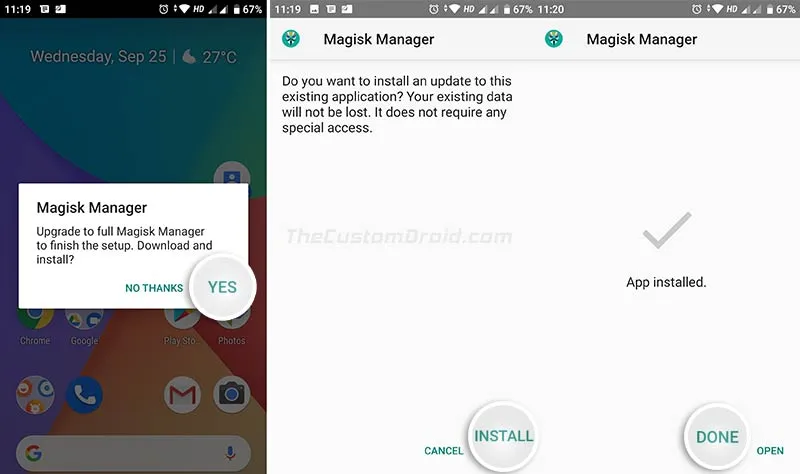
- Right now, only the Magisk Manager stub is installed on your phone. In order for Magisk to work and to grant superuser permissions, you must first install full Magisk Manager.
- Simply go to the phone’s app drawer and launch Magisk Manager app (In case the app doesn’t show up, download the latest APK from here and install it on your phone).
- Select “Yes” when prompted to upgrade to full Magisk Magisk Manager and follow the on-screen instructions.
-
Once Magisk Manager is fully installed, download and install Termux (Terminal Emulator for Android) on your Mi A1.
-
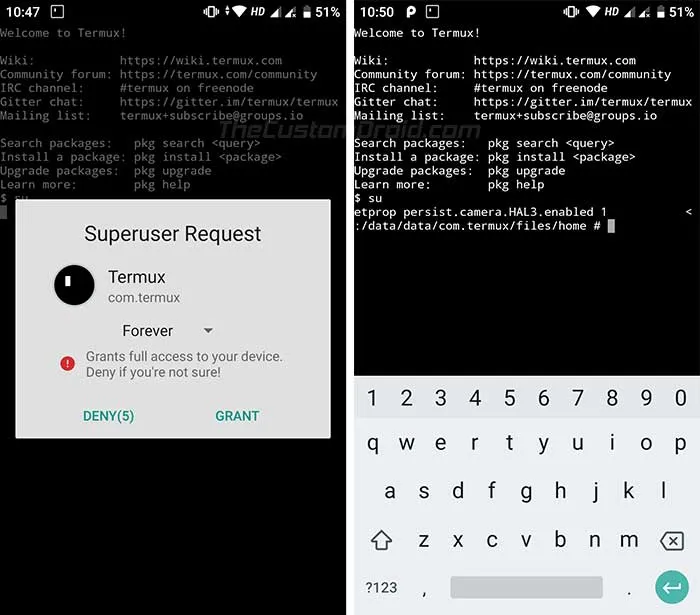
Once installed, launch Termux and enter the following command:
su
-
Grant superuser permissions to the Termux app when prompted.
-
Finally, enable Camera2 API on Xiaomi Mi A1 running Android Pie by entering the following commands:
setprop persist.camera.HAL3.enabled 1
setprop persist.vendor.camera.HAL3.enabled 1
setprop persist.camera.stats.test 5
setprop persist.vendor.camera.stats.test 5
-
Further, enter the following command to enable EIS (Electronic Image Stabilization) on Mi A1:
setprop persist.camera.eis.enable 1
- Once the command executes without any errors, close Termux and reboot your phone. When your phone reboots, Magisk Manager should vanish and your Mi A1 should be unrooted.
For further confirmation, you can also check Camera2 API support using an app. With the API enabled, you can now go ahead and install Google Camera Port on your Mi A1.
Download Google Camera Port for Xiaomi Mi A1
XDA RD joeyhuab created a dedicated thread on the forums to share the latest working Google Camera Ports for Xiaomi Mi A1. Below are some of the GCam ports shared by different users on that thread. Note that each version may have bugs of there own. Rest assured, these are the most stable ports available for the device as confirmed by the XDA users who shared them.
- Google Camera 7.2.014 Port by marlin-ku (PXv4.1.1)
- PXv4.1.1_GCam_7.2.014_whyred_02.apk
- Notes: Not completely stable and the camera app may reboot randomly
- HyperCam E4 (Only for Android 10)
- Google Camera v7.0.0.9 Port by Parrot043:
- Google Camera v6.3.017 Port by Parrot043:
- Google Camera v6.2.030 Port by Wyroczen (Most stable Port):
- Google Camera 6.2.030 Port by overwhelmer:
- 6.2_MiA1_Edition_v1.1G_Q.apk (Only Android 10)
- 6.2_MiA1_Edition_v1.1G_P.apk (Only Android Pie)
- GoogleCamera_6.2.030_MiA1Edition_v1.0g_overwhelmer_STABLE.apk
- Google Camera v6.2.030 Port by Arnova8G2:
Note: For Wyroczen’s version, you will need to install the DotFix module on your rooted device. If your Mi A1 isn’t rooted, then go to Google Camera app “Settings” > “Advanced” > “Lab” and disable “mi a1 dot related fixes”. Also, switch “raw_sensor” to “raw10”. This shall help prevent pink/purple tinted photos.
If you’re not satisfied with the provided ports, you can try and find the perfect one for you from here. Finding the perfect GCam Port for any device is hard. If you have found a better port, then please let us know in the comments. It would help other users who are looking for it.
You have just succeeded to enable Camera2 API on your Xiaomi Mi A1 without root. If you have any questions regarding the method listed above, please feel free to leave a comment.
Comments
Comments are moderated, and published only if they are relevant to the topic and add value in a constructive way. If you disagree with something, please be polite and respectful. We suggest you read our comment policy before commenting.