How to Install TWRP Recovery and Root Xiaomi Mi A2/A2 Lite using Magisk
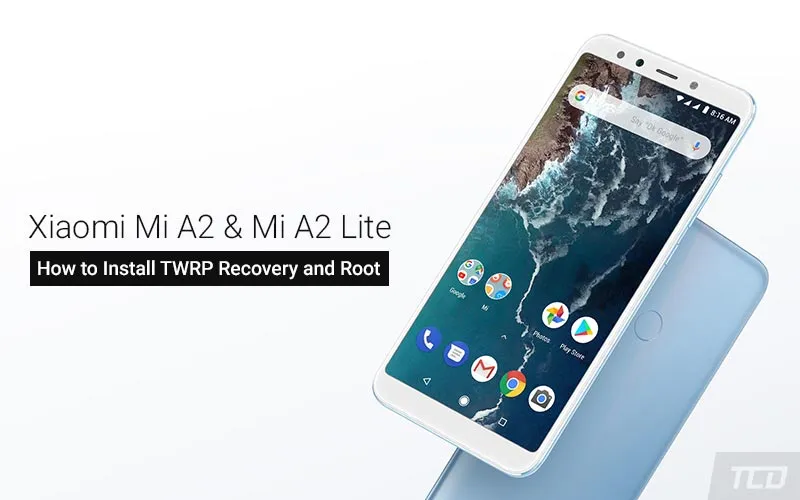
In this tutorial, you will learn how to install TWRP recovery and simultaneously root Xiaomi Mi A2/Mi A2 Lite using Magisk.

On this page
In this tutorial, you will learn how to install TWRP recovery and simultaneously root Xiaomi Mi A2/Mi A2 Lite using Magisk. The instructions will allow you to root any Mi A2 or Mi A2 Lite running Android 10, Android 9 Pie, and Android 8.1 Oreo firmware.
The Xiaomi Mi A2/A2 Lite was released back in 2018, following the huge success of its predecessor, the Mi A1. It is also part of Google’s Android One program, which means it runs stock Android OS without any manufacturer modifications or skins, offering the user a clean, stock Android experience. Both the phones come with decent hardware, ran Android Oreo 8.1 out-of-the-box and are now upgradable to Android 10.
Thanks to XDA Senior Member Manish4586 and the official TWRP team, we now have working builds of TWRP recovery for Xiaomi Mi A2 (codename: jasmine_sprout) and Mi A2 Lite (codename: daisy), respectively. This means you can gain root access by flashing Magisk and also flash a variety of custom ROMs that are available for the device.
Want to root without TWRP? Follow this guide instead.
Prerequisites
- First and foremost, ensure that you have taken a full backup of all your important data on your phone. This includes messages, contacts, and everything else that you feel necessary. We also have a tutorial that will help you backup your data with ease.
- Charge the device battery to at least 60%. This shall prevent the phone from suddenly shutting down during the process.
- In order to unlock the bootloader, you must first enable the ‘OEM Unlock’ toggle on your Mi A2/A2 Lite.
- Also, download the Android SDK platform-tools from here and install them on your PC.
- When asked to launch the command-line window on your PC at any point during the instructions below, do the following.
-
On Windows: Go to the folder where the ADB and Fastboot tools are installed (e.g. C:\platform-tools). Hold the Shift key and right-click on any empty space inside the folder. Then select ‘Open PowerShell window here’.
-
On macOS/Linux: Launch the Terminal and change its directory (using the ‘cd’ command) to the folder where the ADB and Fastboot tools are installed. For example, if the tools are installed to ‘/Documents/platform-tools’, then the command should be:
cd Documents/platform-tools
-
Downloads
For the Mi A2 Lite, we have also provided the unofficial TWRP (by offain) that supports data encryption on Android 10 and Android Pie. If the official TWRP doesn’t work for you, then you may use the unofficial version. The builds were sourced from here. Also, note that you’ll still need to format the /data partition to be able to use internal storage in TWRP.
- TWRP Recovery for Xiaomi Mi A2 (jasmine_sprout):
- TWRP recovery img: twrp-3.3.1-0-jasmine_sprout.img (Official) | twrp-3.3.1-3-jasmine_sprout.img (Unofficial; Recommended)
- TWRP installer zip: twrp-installer-3.3.1-0-jasmine_sprout.zip
- TWRP Recovery for Xiaomi Mi A2 Lite (daisy):
- TWRP recovery img: twrp-3.3.1-dees_troy-daisy.img (Official) | twrp-daisy-3.3.1-0-offain.img (Unofficial)
- TWRP installer zip: twrp-installer-3.3.1-dees_troy-daisy.zip (Official) | twrp-installer-daisy-3.3.1-0-offain.zip (Unofficial)
- Universal DM-Verity and Forced Encryption Disabler (Huge thanks to Zackptg5!): Disable_Dm-Verity_ForceEncrypt_02.02.2020.zip
- Magisk Installer zip: Magisk-v20.3.zip | Check for the latest version here
Instructions
Rooting the Xiaomi Mi A2/A2 Lite is a 4-step process. In brief, the process involves unlocking the phone’s bootloader first. Once the bootloader is open to modifications, the second step is to install TWRP recovery using a couple of fastboot commands. Then, the third step is to format the phone’s data partition via TWRP so that the internal storage can be recognized by the recovery. This is followed by the fourth and final step, which is to flash the Magisk installer zip and root Xiaomi Mi A2/A2 Lite.
Now without any further wait, let’s get straight to the instructions!
Step 1: Unlock Your Phone’s Bootloader
In order to make any modifications, you must first unlock the bootloader on your Mi A2/A2 Lite. Since the said devices run the stock Android software, the process is relatively easy when compared to other Xiaomi devices running MIUI.
With everything set up properly, follow the instructions in this guide to unlock the bootloader.
Step 2: Install TWRP Recovery on Xiaomi Mi A2/A2 Lite
Since the Mi A2/A2 Lite comes with A/B partition system, you will first have to temporarily boot the TWRP recovery image on your phone. Once booted, you can simply flash the TWRP installer zip to permanently install TWRP recovery on Mi A2/A2 Lite.
Note: While entering the commands, make sure that you replace the recovery name with the actual filename of the TWRP recovery image you are using.
- Download TWRP recovery image and installer ZIP files for your Mi A2/A2 Lite.
- Copy the downloaded files to the folder where ADB and Fastboot tools are installed on your PC.
- Launch the command-line window on your PC (See the ‘Prerequisites’ section for reference).
- Power off your Xiaomi Mi A2/A2 Lite completely.
- Hold the Volume Down and Power buttons together to boot your phone into Fastboot Mode.

-
Connect the phone to the PC using a USB cable.
-
Enter the following command to temporarily boot the TWRP recovery image:
-
on Xiaomi Mi A2:
fastboot boot twrp-3.3.1-0-jasmine_sprout.img
-
On Xiaomi Mi A2 Lite:
fastboot boot twrp-3.3.1-dees_troy-daisy.img
-
-
After entering the command, your phone should boot into the recovery mode.
-
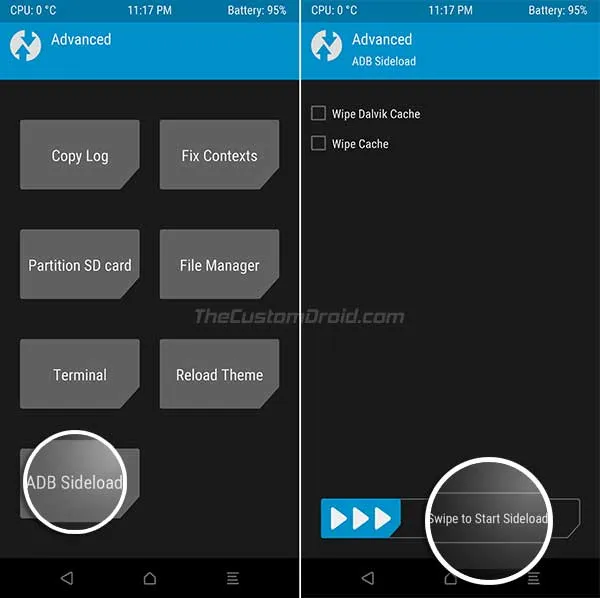
In TWRP, go to ‘Advanced’ > ‘ADB Sideload’ and swipe the button on the bottom.
-
Finally, enter the following command to sideload and permanently install TWRP recovery on Xiaomi Mi A2:
adb sideload twrp-installer-3.3.1-0-jasmine_sprout.zip
On Mi A2 Lite:
adb sideload twrp-installer-3.3.1-dees_troy-daisy.zip
Note that TWRP cannot decrypt the storage (/data partition) on Android 10 and Android Pie, by default. If you’re on Android Oreo, you can skip directly to the rooting instructions.
Step 3: Format Data Partition and Disable Encryption (on Android 10 & Pie)
Since TWRP doesn’t support encryption on Android 10/Pie. It is important to first format the data partition in TWRP and flash the forced-encryption disabler first. Even if you do not want to root, it is essential to do this, to be able to access the storage in TWRP.
- In TWRP, go to ‘Wipe’ > ‘Format Data’.
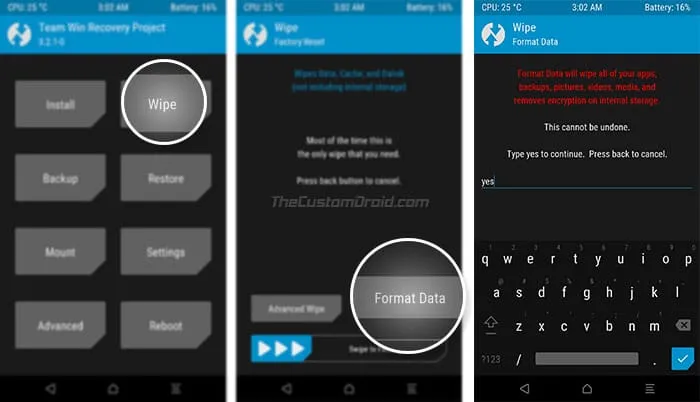
- Enter ‘yes’ in the provided field and swipe the button to format the data partition of your Mi A2/A2 Lite.
- Once formatted, go to the ‘Reboot’ menu from TWRP’s main screen.
- Press the’ Recovery’ button to reboot your Mi A2 device into TWRP recovery mode. This will ensure that TWRP can successfully decrypt the phone’s internal storage after formatting the data partition.
- Once your phone reboots into the recovery, go to the ‘Mount’ menu and tap on ‘Enable MTP’.
- Download the Forced-Encryption Disabler zip file and transfer it to the phone’s internal storage.
- Disconnect the phone and go to the main TWRP menu.
- Tap on ‘Install’ and select the Encryption-Disabler zip file (e.g. Disable_Dm-Verity_ForceEncrypt_02.02.2020.zip).
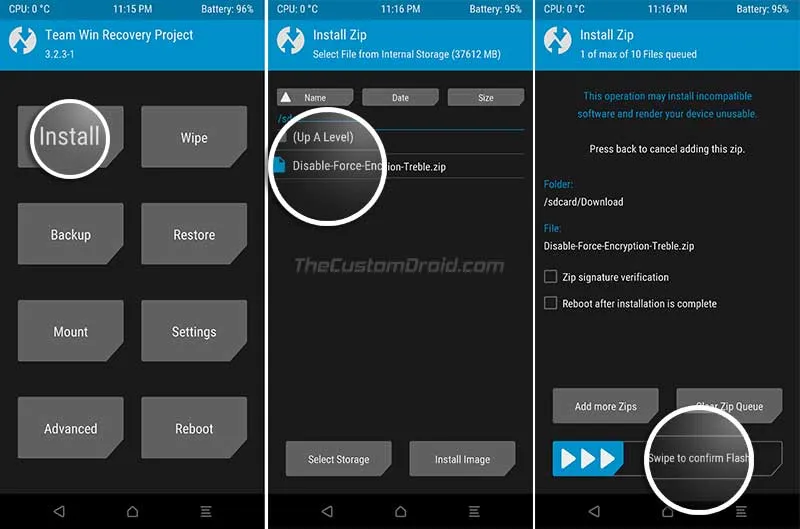
- Finally, swipe the button to flash the file and install Forced-Encryption Disabler on your Mi A2/A2 Lite.
Once the flashing process finishes, you can easily root your Xiaomi Mi A2 device by flashing the latest Magisk installer zip. Just follow the instructions in the step below.
Step 4: Flash Magisk to Root Xiaomi Mi A2/A2 Lite
- Download the latest Magisk install ZIP file on your PC.
- Connect your Mi A2/A2 Lite to the PC using the USB cable.
- Copy the downloaded Magisk ZIP file to the phone’s internal storage.
- Disconnect the phone and power it off completely.
- Hold the Volume Up and Power buttons together to boot your Xiaomi Mi A2/A2 Lite into TWRP recovery mode.
- In TWRP, tap on the ‘Install’ button and select the Magisk zip file (e.g. Magisk-v20.3.zip).
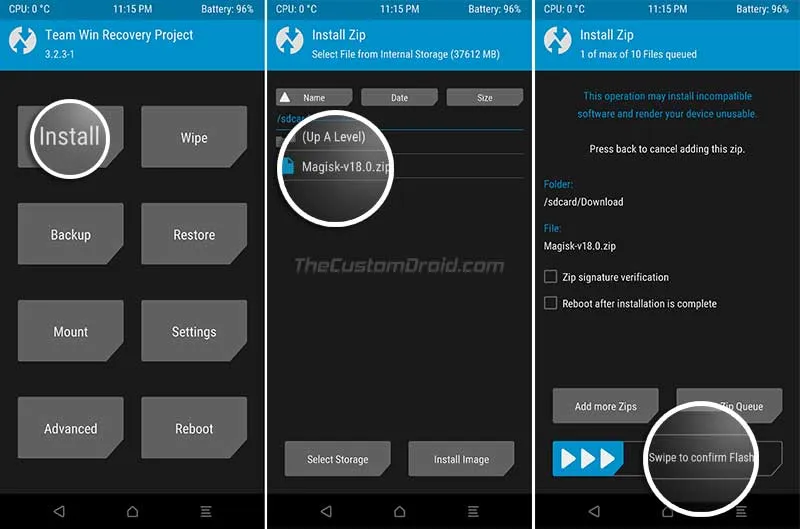
- Finally, swipe the button to flash the Magisk ZIP file and root Xiaomi Mi A2/A2 Lite.
- Once the flashing process finishes, tap on the ‘Reboot System’ button.
When your phone boots up, you should have Magisk Manager in your app drawer and have full root access with a working TWRP. To verify whether the rooting process succeeded, simply launch the Magisk Manager application.
Now that your phone is rooted, you can start using root-enabled apps or install Magisk modules to add extra features to the software. On the other hand, you can also use TWRP recovery to flash custom ROMs, kernels and mods.
F.A.Qs
- Can the official TWRP recovery decrypt /data and mount internal storage on Mi A2 or Mi A2 Lite running Android 10/Android Pie?
- No. Natively, TWRP doesn’t support decryption on Pie. To get past this, you will first need to format the /data partition and flash the Encryption Disabler zip file (See Step #3 above).
- I am seeing the ‘System has been destroyed’ message after installing TWRP on Mi A2 Lite (daisy)?
-
Then download the ‘aboot.img’ from V9.6.4.0 (Download Link), boot your Mi A2 to Fastboot Mode and flash it using the following command:
fastboot flash aboot_a aboot_9.6.4.img
fastboot flash aboot_b aboot_9.6.4.img
-
According to the explanation given by XDA Senior Member mac12m99, the newer bootloader (aboot.img) version checks for stock recovery, even when the bootloader is unlocked. To overcome this, you can flash an older bootloader version (Especifically from V9.6.4.0) to fix this issue.
-
- My Mi A2/A2 Lite reboots into TWRP and does not enter the OS at all?
- Boot your phone into TWRP recovery and re-flash the latest Magisk installer zip file again.
More for Mi A2 Devices:
So, this was our guide on how to install TWRP recovery and root Xiaomi Mi A2/A2 Lite using Magisk. If you have any questions or if you get stuck at any step, feel free to ask us via the comments, and we will try our best to help you out.
Comments
Comments are moderated, and published only if they are relevant to the topic and add value in a constructive way. If you disagree with something, please be polite and respectful. We suggest you read our comment policy before commenting.