Nokia 5.1 OTA Software Updates Repository and Installation Guide
A repository to download all Nokia 5.1 OTA software updates. And learn how to manually install OTA updates on the Nokia 5.1 using stock recovery.

On this page
Software updates are a core part of any Android smartphone. If you haven’t got the latest software update on your phone yet, then you install and upgrade manually. Through this page, you can download all the Nokia 5.1 OTA software updates released till now. This includes the latest Android 10-based January 2021 security update with the “V4.16D” software build/version number. Further, I will also show you how to manually install OTA updates on the Nokia 5.1 using stock recovery.
Launched in 2018, the Nokia 5.1 is an entry-level smartphone from HMD Global and a predecessor to the Nokia 5.1 Plus. Being a part of Google’s Android One program, the phone is guaranteed to get two major Android version upgrades and continuous monthly updates for three years since its launch. The phone came with Android 8.1 Oreo out-of-the-box and got the Android Pie update back in March 2019.
And now more recently, the OEM pushed the Android 10 update for the Nokia 5.1 as the second major Android OS upgrade. Following the same, the Nokia 5.1 is getting the January 2021 security update this month.
The need for manually installing OTA updates
So, why would even need to manually install OTA updates on your phone? – Like any other Android phone, software OTA updates for the Nokia 5.1 are always rolled out in a staged manner. These updates are available for selected regions or a small percentage of users initially, which is followed by a wider release in the following days/weeks. Depending on these factors, you might often have to wait for the latest OTA software update to be available for your Nokia 5.1.
Well, if you want, you could skip those days/weeks of waiting for the update and upgrade your phone manually. This doesn’t require you to unlock your phone’s bootloader or do anything else that could affect your phone’s integrity in any manner. All you need to do is download and sideload the OTA update zip package on your Nokia 5.1 using the in-built stock recovery. The process is in fact quite easy if you know the right steps.
And that’s what this post is about. Below, you can download the OTA zip packages of the latest software update for your Nokia 5.1 and follow the provided instructions to manually install it.
Prerequisites
In order to manually install an update, you will first have to fulfill some requirements as listed below.
- You will need a Windows, macOS, or Linux PC
- Performing manual upgrades by sideloading the OTA through the stock recovery is safe (unless you do it wrong). In doing so, you wouldn’t lose any of your personal data stored on the phone. However, software errors could still occur (although very occasionally) and it’s best to be precautious and safeguard your data for such odd situations.
So, make sure that you first take a complete backup of all your data stored on your phone. This includes messages, call logs, contacts, photos, documents, and everything else stored on your phone’s internal storage. If you need it, you could also follow our detailed guide on this topic. - Charge your phone to a sufficient battery level to prevent it from shutting down during the middle of the update process.
- Also, enable USB debugging on your Nokia 5.1 through the instructions in this tutorial.
Nokia 5.1 OTA Updates Download Links
Below, you will find direct links to download all the OTA software updates released for the Nokia 5.1 (codename: CO2_Sprout). These packages were captured directly from the official servers. The links are listed in increasing order, so the latest one will be at the very bottom.
Note: If you can, you could help us by capturing the OTA URL of an update when it arrives on your phone and sharing it with us.
Important information about OTA Updates
OTA updates and their corresponding zip packages are available in the following two forms:
- Incremental OTA updates: These types of updates can only be installed over a specific software version and are significantly small in size. Most OTA packages of monthly security updates are incremental in nature. For example, the January 2021 security update (V4.16D) can only be installed on your Nokia 5.1 if it’s running the December 2020 firmware (V4.16C).
- Full OTA updates: These types of updates are much bigger in size and can be installed over any previous software version. Most major Android version updates and maintenance releases are full OTA updates. For example, the latest Android 10 update (V4.160) can be installed on your phone irrespective of the previous Android 9 Pie software installed.
So, if you’re installing a monthly security update over a previous one, take note of the current software version installed on your Nokia 5.1 first. You can get this info by going to ‘Settings’ > ‘About phone’ on your phone. Then download the OTA package of the next update accordingly.
If you’re going to install a major Android update like Android 10, then the installed software version doesn’t need to be accounted for.
Latest: January 2021 Security Update (V4.16D)
-
Android version: Android 10
- Software build number: 00WW_4_16D
- Google Security Patch Version: 2021-01
-
Download: Incremental OTA (required V4.16C)
Previous Updates
Below are the download links for all the previous updates released for the Nokia 5.1.
December 2020 Security Update (V4.16C)
- Android version: Android 10
- Software build number: 00WW_4_16C
- Google Security Patch Version: 2020-12
- Download: Incremental OTA (v4.16B)
November 2020 Security Update (V4.16B)
- Android version: Android 10
- Software build number: 00WW_4_16B
- Google Security Patch Version: 2020-11
- Download: Incremental OTA (requires V4.16A)
October 2020 Security Update (V4.16A)
- Android version: Android 10
- Software build number: 00WW_4_16A
- Google Security Patch Version: 2020-10
- Incremental OTA: 49edade1536f3dcd25ea7c0689e5e340a5a7aaf3.zip
Android 10 Update (V4.160)
- Android version: Android 10
- Software build number: 00WW_4_160
- Google Security Patch Version: 2020-09
- Full OTA: c39d5c22880f30b193b68485bb64f2c3bc5c57f1.zip
September 2020 Security Update (V3.25O)
- Android version: Android 9 Pie
- Software build number: 00WW_3_25O
- Google Security Patch Version: 2020-09
- Incremental OTA: b63d6d11720a8197827fccbbc36da02ac00f039b.zip
August 2020 Security Update (V3.25N)
- Android version: Android 9 Pie
- Software build number: 00WW_3_25N
- Google Security Patch Version: 2020-08
- Incremental OTA: 1f185787793a9b412e04fb24869805830407d103.zip
July 2020 Security Update (V3.25M)
- Android version: Android 9 Pie
- Software build number: 00WW_3_25M
- Google Security Patch Version: 2020-07
- Incremental OTA: d9fb0e6c5ef69a0b6a0f1846041606f1c48c5db3.zip
June 2020 Security Update (V3.25L)
- Android version: Android 9 Pie
- Software build number: 00WW_3_25L
- Google Security Patch Version: 2020-06
- Incremental OTA: d1d1c32bf5f0a2c5dac22bfa3d8c19826beb157c.zip
May 2020 Security Update (V3.25K)
- Android version: Android 9 Pie
- Software build number: 00WW_3_25K
- Google Security Patch Version: 2020-05
- Incremental OTA: 6138e93922eb004686c156c677566ac13e2db056.zip
April 2020 Security Update (V3.25J)
- Android version: Android 9 Pie
- Software build number: 00WW_3_25J
- Google Security Patch Version: 2020-04
- Incremental OTA: dd7314c887bba96c983dede338462a0a5e9422f7.zip
March 2020 Security Update (V3.25I)
- Android version: Android 9 Pie
- Software build number: 00WW_3_25I
- Google Security Patch Version: 2020-03
- Incremental OTA: ccf3427900f6a7b4618ae1a91f6dd270eefb9468.zip
February 2020 Security Update (V3.25H)
- Android version: Android 9 Pie
- Software build number: 00WW_3_25H
- Google Security Patch Version: 2020-02
- Incremental OTA: 0e7f746221372f3f9bb50f79913f033612f05599.zip
January 2020 Security Update (V3.25G)
- Android version: Android 9 Pie
- Software build number: 00WW_3_25G
- Google Security Patch Version: 2020-01
- Incremental OTA: 7db56d7152347e1dc908f698e475f15e20c1b989.zip
December 2019 Security Update (V3.25F)
- Android version: Android 9 Pie
- Software build number: 00WW_3_25F
- Google Security Patch Version: 2019-12
- Incremental OTA: 43a78a0f9342a8ed6b1a8b6888fee94da82ca1e7.zip
November 2019 Security Update (V3.25E)
- Android version: Android 9 Pie
- Software build number: 00WW_3_25E
- Google Security Patch Version: 2019-11
- Incremental OTA: fb960f13ef8fc60af2bc0e200a42bb43c0478ef9.zip
October 2019 Security Update (V3.25D)
- Android version: Android 9 Pie
- Software build number: 00WW_3_25D
- Google Security Patch Version: 2019-10
- Incremental OTA: c46cd047738a76a273f4bf358b65d5b8f2abc856.zip
September 2019 Security Update (V3.25C)
- Android version: Android 9 Pie
- Software build number: 00WW_3_25C
- Google Security Patch Version: 2019-09
- Incremental OTA: bf454f37e43376ba118311af3fe96c3c2d064f64.zip
August 2019 Security Update (V3.25B)
- Android version: Android 9 Pie
- Software build number: 00WW_3_25B
- Google Security Patch Version: 2019-08
- OTA: 913ba35a52f475baf29746a0c704b2fdbcb1b6cd.zip
July 2019 Security Update (V3.19D)
- Android version: Android 9 Pie
- Software build number: 00WW_3_19D
- Google Security Patch Version: 2019-07
- Incremental OTA: 1e6c2a35007d84c1dd71b4206fca90c48d70f57b.zip
How to Manually Install an OTA Update on Nokia 5.1
To manually install updates on your Nokia 5.1, you will need to sideload the OTA zip package via the stock recovery. The process is extremely simple. In brief, you just have to download the OTA update file, boot your phone into stock recovery mode, and execute a simple ADB command from your computer. The steps below will take you through the complete process.
Step 1: Install ADB on your PC
The first step of the process is to set up ADB on your computer. ADB is basically a command-line tool generally used for debugging, and other purposes like sideloading updates in this case. So, start by downloading the Android platform-tools package according to your PC’s operating system from below.
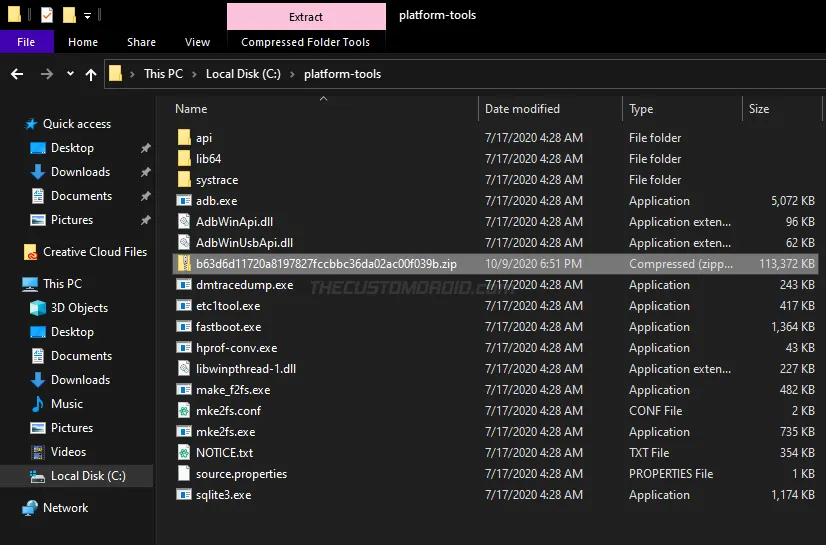
Once you have downloaded the package on your PC, all you have to do is extract the ZIP file using an archive tool like 7-Zip. The extracted “platform-tools” folder should contain the required ADB binary and other related files.
For easy access, move this ‘platform-tools’ folder to C:\ drive, if you’re using a Windows PC, or to the ‘Documents’ directory if you’re using a Linux or Mac PC.
Step 2: Download the OTA Package and move it inside ‘platform-tools’ Folder
Now, download the OTA zip file of the software update that you want to install. Once downloaded, move the file to inside the “platform-tools” folder you extracted during the last step. This will allow the command-line to identify the OTA package while sideloading.
Step 3: Launch the Command-Line on your PC
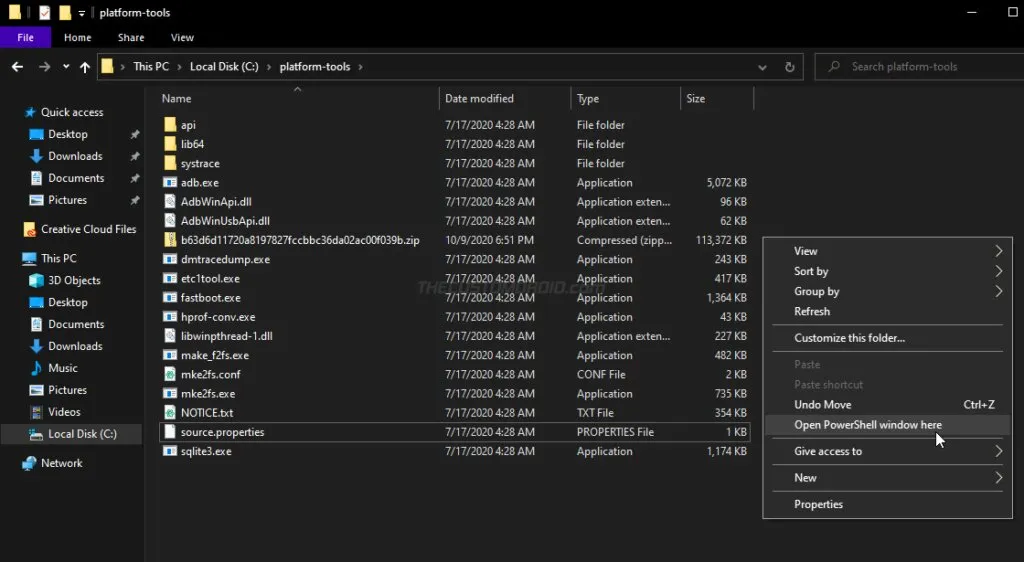
With ADB and other platform-tools in place, you now need to launch the command-line window within the same folder. To do this:
- On Windows: Open the platform-tools folder, then hold the SHIFT key on your PC’s keyboard and right-click on any empty space inside the folder. Then select the ‘Open PowerShell window here’ or ‘Open command window here’ (Depending on Windows OS version).
-
On macOS/Linux: Launch the Terminal and use the ‘cd’ command to change its directory to the platform-tools folder. For example, if you have moved the ‘platform-tools’ folder inside the ‘Documents’ directory, then the command should look like the following:
cd Documents/platform-tools

Once you have done this, your PC should be completely ready to sideload the OTA package.
Note: When entering the commands mentioned below, make sure to precede them with a dot and backslash ”.\” in Windows PowerShell, or with a dot and forward slash ”./” in macOS/Linux Terminal.
Step 4: Verify ADB Connection between the phone and PC
Enable USB debugging on your Nokia 5.1 and connect it to the PC via a USB cable. Then, enter the following command in the PowerShell/Terminal to ensure that your computer can communicate with the phone over the ADB interface:
adb devicesIf you see a prompt on your phone’s screen to allow USB debugging, select ‘Allow’.
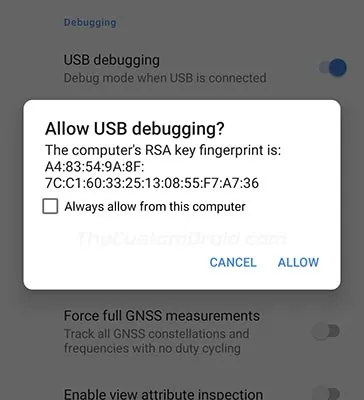
The command should return a unique device ID. In case it doesn’t, it means that the proper ADB drivers are not installed, in which case, you can download and install them from here.
Step 5: Boot your Phone into the Stock Recovery mode
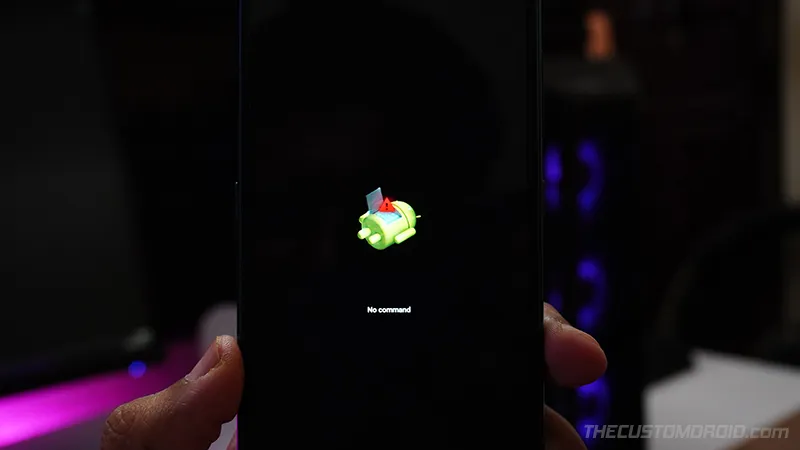
To install the OTA update, you have to boot your phone into the stock recovery mode. With USB debugging enabled, you can easily do this by executing the following command:
adb reboot recoveryYour Nokia 5.1 should now automatically reboot and you should the ‘No Command’ screen with an Android bot on the screen, as shown in the figure below. To enter the stock recovery, simply hold the Power key and tap the Volume Up key once.
Step 6: Enable ADB Sideloading in Stock Recovery
Use the Volume keys to move the selector to ‘Apply update from ADB’ and press the Power key of your phone to confirm the selection. This will make your phone ready to accept the OTA through the ADB sideload command.
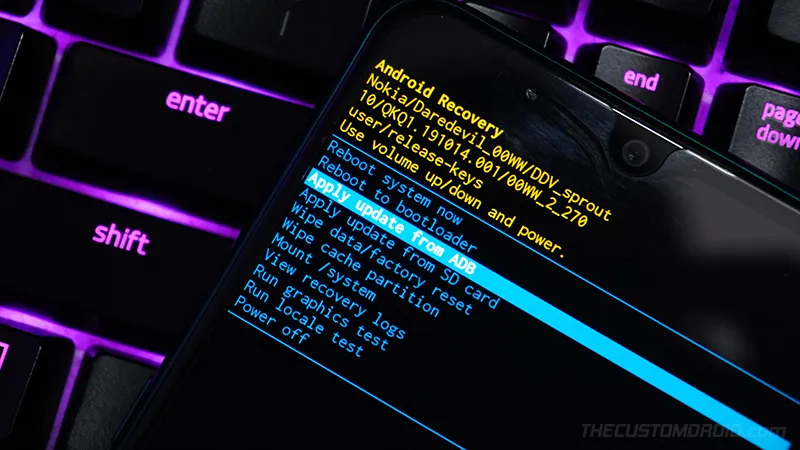
Step 7: Use ADB Sideload to Install the OTA Update on your Nokia 5.1
Now, enter the following ADB command in PowerShell/Terminal to start sideloading and install the OTA update on your Nokia 5.1:
adb sideload ota-filename.zipIn the command above “ota-filename.zip” needs to be replaced with the actual filename of the OTA package you’re sideloading. For instance, if you have downloaded the OTA package of the January 2020 update, then the command should be the following:
adb sideload fa735738cc5e8910d8919dec553a626e2a6bef98.zipAs soon as you enter the command, the stock recovery will begin installing the OTA update. The progress for the same should be shown at the bottom of your phone’s screen. The process could take from a couple of seconds to a few minutes to complete, depending upon the size of the file. So, leave the USB connection undisturbed.
Step 8: Reboot your Phone into the Updated OS
Once it’s finished, use the Volume keys to move the selector to the “Reboot system now” option and confirm by pressing the Power key.
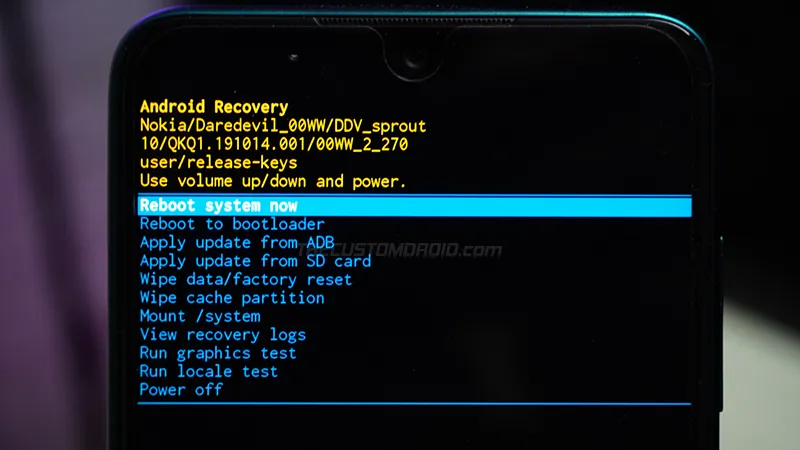
That’s it! You have just successfully updated your Nokia 5.1 to the latest software version by sideloading the OTA package. You could repeat the same process to manually upgrade your phone every time a new update is released. We will give it our best to keep the download links up-to-date.
If you face any problems while following the instructions in this guide or have any questions regarding the whole manually updating concept, please feel free to ask us. Please don’t forget to share the exact software version number currently installed on your phone while seeking help.
Comments
Comments are moderated, and published only if they are relevant to the topic and add value in a constructive way. If you disagree with something, please be polite and respectful. We suggest you read our comment policy before commenting.